


eMonitor + Microsoft 365: The Productivity Monitoring Integration Guide
Employee monitoring with Microsoft 365 integration is a two-layer problem. Microsoft 365 gives IT and HR a collaboration metadata view through Viva Insights and admin audit logs. What those tools deliberately omit is the endpoint behavioral layer: which applications employees actually use, how much time is genuinely productive versus idle, and what happens on the device during self-scheduled focus blocks. This guide explains exactly what each M365 monitoring layer captures, where the visibility gap begins, and how eMonitor connects to your Microsoft environment to fill it.
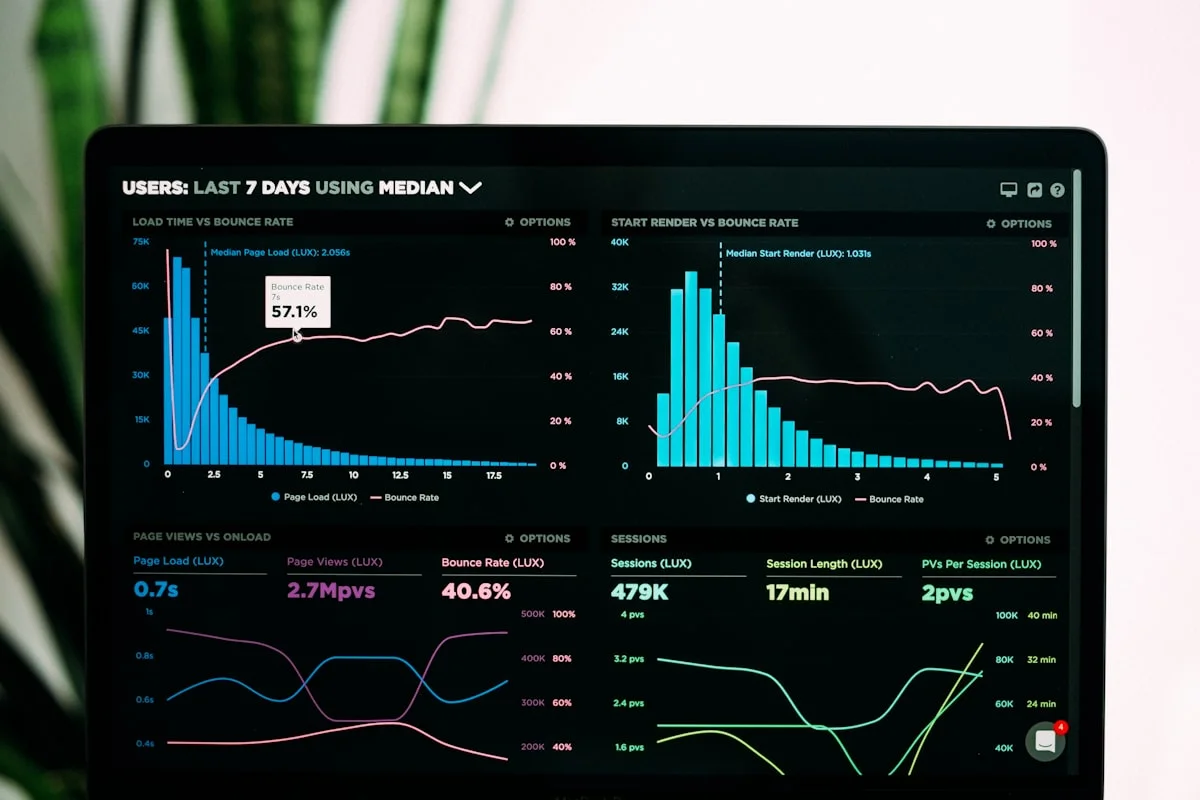
What Microsoft 365 Actually Monitors: Two Layers With Clear Limits
Microsoft 365 employee productivity monitoring operates on two distinct layers, and both are intentionally constrained in what they record. Understanding those constraints is the starting point for any organization that needs endpoint behavioral visibility alongside its M365 deployment.
Layer 1: Microsoft Viva Insights
Microsoft Viva Insights is a collaboration analytics product built into M365. It tracks collaboration metadata: the number of meetings an employee attends, emails sent and received per day, Teams chat message volume, focus time blocks that employees schedule on their calendars, and network connections (which colleagues someone collaborates with most frequently). Viva Insights aggregates this data into wellbeing dashboards and team-level collaboration reports for managers.
What Viva Insights intentionally does not capture is equally important to understand. Microsoft's own documentation states that Viva Insights "doesn't track what employees are actually doing during focus time" and does not record application usage outside Microsoft apps, websites visited in any browser, idle time on the device, or productivity on non-Microsoft software. These omissions are by design: Microsoft positioned Viva Insights as a wellbeing and collaboration tool, not a behavioral productivity monitor.
The practical consequence for workforce managers: Viva Insights tells you that an employee scheduled three two-hour focus blocks this week. It does not tell you whether those six hours were spent writing code, reading news, or switching between 14 browser tabs. That distinction is the entire difference between collaboration analytics and actual productivity monitoring.
Layer 2: Microsoft 365 Admin Center Audit Logs
The Microsoft 365 Unified Audit Log, accessible through the M365 Compliance Center (now Microsoft Purview), records events across Exchange Online, SharePoint, OneDrive, Teams, and Azure Active Directory. Logged events include file access in SharePoint and OneDrive, email forwarding rules, sign-in events, admin configuration changes, and Teams channel activity.
These audit logs serve a compliance and security investigation purpose: they answer questions like "did this employee access the sensitive HR folder?" or "was this email forwarded to an external address?" They are not designed to answer productivity questions like "how much time did this employee spend working productively today?" or "what applications did this employee use during their shift?" Audit logs are an event trail, not a behavioral activity record.
Standard M365 licenses retain audit logs for 90 days. E3 and E5 licenses extend retention to one year. Neither tier captures endpoint application usage data, which requires an agent installed on the device itself.
The Endpoint Behavioral Gap
The gap between what M365 provides and what a productivity-conscious organization needs is the endpoint behavioral layer. This layer answers the questions that Viva Insights and audit logs leave open: which applications was the employee using, for how long, during which hours? How much of the working day was active versus idle? Were unproductive sites visited during contracted work hours? What is the actual productive time percentage for each team member?
Filling this gap requires software running at the endpoint level, on the employee's device, recording application and browser activity in real time. eMonitor is that endpoint layer. Used alongside M365, it gives organizations the complete picture that neither Microsoft product was built to deliver on its own.
Viva Insights vs. eMonitor: What Each Product Actually Sees
The most useful way to understand employee monitoring with Microsoft 365 is to compare what each tool records for the same employee on the same day. This comparison clarifies why the tools are complementary rather than substitutes.
| Data Point | Viva Insights | M365 Audit Logs | eMonitor |
|---|---|---|---|
| Meetings attended | Yes, count and duration | Teams meeting events only | Yes, Teams app time tracked |
| Emails sent/received | Yes, volume counts | Yes, full email event log | Email client time tracked |
| Focus time blocks | Yes, calendar-based | No | Actual app activity during focus time |
| Application usage (all apps) | No | No | Yes, every application, time-stamped |
| Website visits | No | No (outside M365 apps) | Yes, all browser activity |
| Idle time | No | No | Yes, configurable idle detection |
| Productive vs. non-productive classification | Partial (collaboration vs. focus) | No | Yes, role-configurable app classification |
| Real-time activity alerts | No | No (compliance alerts only) | Yes, configurable threshold alerts |
| SharePoint/OneDrive file access | No | Yes | App-level time in OneDrive client |
| Screenshot evidence | No | No | Yes, configurable frequency |
| Attrition risk signals | Collaboration network decline | No | Behavioral disengagement patterns |
The table illustrates that Viva Insights and eMonitor answer fundamentally different questions. Viva Insights answers: "How is this employee engaging with colleagues and Microsoft collaboration tools?" eMonitor answers: "What is this employee actually doing on their device during work hours?" Both questions matter. Organizations that treat them as redundant leave a significant visibility gap open.
Team Productivity, This Week
Productive hours / day
Activity mix
▲ Deep-focus time up 19% after protecting daily focus blocks.
Illustrative eMonitor dashboard.
Data Correlation: What Happens When You Combine Both Layers
The most powerful use of employee monitoring with Microsoft 365 integration is correlating Viva Insights collaboration data with eMonitor endpoint behavioral data. This correlation surfaces insights that neither tool can produce independently.
Scenario 1: The "Focus Time" Reality Check
An employee's Viva Insights personal dashboard shows 18 hours of focus time scheduled across the work week, which ranks in the top quartile for their team. Their manager sees this as a positive signal. But when eMonitor's timeline data for the same employee is reviewed, those 18 hours show a very different picture: approximately 6 hours in the primary development IDE, 3 hours in documentation tools, and 9 hours split across news sites, social media, and personal video streaming.
Viva Insights measured the calendar block. eMonitor measured what actually happened inside it. The correlation gives the manager an accurate and actionable view: the employee is scheduling focus time correctly but has a distraction pattern that, once identified, can be addressed through a supportive conversation rather than guesswork.
Scenario 2: Collaboration Load vs. Deep Work Ratio
Viva Insights reports that a senior engineer has 32 hours of meeting time over a two-week period, which triggers a wellbeing alert for collaboration overload. Simultaneously, eMonitor data shows that the engineer's productive time in coding tools has dropped from a baseline of 4.2 hours per day to 1.8 hours per day during the same period. The two data points together confirm a real productivity impact from meeting overload, giving the engineering director concrete data to justify restructuring meeting cadences.
Either data source alone would be inconclusive. The Viva Insights alert could indicate a high-collaboration project phase, not a problem. The eMonitor productivity drop could have multiple causes. Together, they form a clear causal picture.
Scenario 3: Early Attrition Signal Detection
eMonitor's attrition risk signals include behavioral patterns such as declining productivity scores, reduced application usage intensity, and increased time on job search or professional networking sites during work hours. Viva Insights separately measures declining collaboration network breadth, which Microsoft has identified as a leading attrition indicator. When both signals appear simultaneously for the same employee, the combined confidence in an attrition risk is substantially higher than either signal alone. HR teams using both tools can schedule proactive retention conversations weeks earlier than those relying on a single data source.

See What M365 Is Missing in Your Environment
Connect eMonitor to your Microsoft 365 environment in under 30 minutes. No M365 license changes required.
Technical Integration Guide: Azure AD (Entra ID) SSO with eMonitor
Microsoft 365 employee monitoring integration with eMonitor centers on Azure Active Directory (now called Microsoft Entra ID) Single Sign-On. SSO integration means employees authenticate into eMonitor using their existing Microsoft credentials, and IT administrators manage access through the Entra ID user and group structure they already maintain. There is no separate credential system to manage.
Prerequisites
Before configuring SSO, confirm the following: an active Microsoft 365 or Azure AD tenant with administrator access, an eMonitor Professional or Enterprise account (SSO is supported on both), and Global Administrator or Application Administrator role in Entra ID. The integration uses the SAML 2.0 protocol, which M365 E3 and E5 licenses support by default. M365 Business Premium also supports enterprise SAML SSO applications.
Step 1: Register eMonitor as an Enterprise Application in Entra ID
Log into the Microsoft Entra admin center at entra.microsoft.com. Navigate to Identity, then Applications, then Enterprise Applications. Select "New application" and choose "Create your own application." Name the application "eMonitor" and select "Integrate any other application you don't find in the gallery (Non-gallery)." This creates the enterprise application record in your tenant.
Step 2: Configure SAML-Based SSO
Inside the eMonitor enterprise application record, navigate to "Single sign-on" in the left panel. Select "SAML" as the sign-on method. In Section 1 (Basic SAML Configuration), enter the values provided in your eMonitor admin settings under Integrations, then SSO Configuration. These values include the Identifier (Entity ID) and the Reply URL (Assertion Consumer Service URL), both of which are unique to your eMonitor account. Save the configuration.
Step 3: Download the Federation Metadata XML
In Section 3 (SAML Certificates) of the Entra ID SSO configuration page, download the Federation Metadata XML file. Upload this file into the eMonitor admin panel under Integrations, then SSO, then Upload IdP Metadata. eMonitor reads the metadata XML to establish the trust relationship with your Entra ID tenant. No manual certificate entry is required.
Step 4: Assign Users and Groups
Return to the enterprise application's Users and Groups section in Entra ID. Add the Microsoft 365 security groups or individual users who should have access to eMonitor. Entra ID enforces these assignments: only assigned users see eMonitor in their Microsoft app launcher and can authenticate through SSO. Assign your monitoring administrators to an eMonitor admin role group and other employees to the standard user role.
Step 5: Test and Enable
Use the "Test" function in the Entra ID SSO configuration page to verify the integration with an assigned user account before enabling it for the full team. A successful test shows the eMonitor dashboard loading with the authenticated user's account. Once tested, the SSO integration is active. Employees click the eMonitor tile in their Microsoft app launcher or at myapps.microsoft.com to authenticate without a separate password.
SCIM Provisioning (Optional but Recommended)
Beyond SSO, eMonitor supports SCIM 2.0 automatic user provisioning from Entra ID. With SCIM provisioning enabled, adding a new employee to a designated Entra ID group automatically creates their eMonitor account. Removing an employee from the group or deactivating their Entra ID account automatically deactivates their eMonitor access. For organizations with frequent onboarding and offboarding, SCIM provisioning eliminates the manual step of managing eMonitor user accounts separately from M365 identity management.
Microsoft Teams Integration: Monitoring Alerts Where Managers Already Work
eMonitor's Microsoft Teams integration routes monitoring alerts and scheduled productivity reports directly into Teams channels and direct messages. This means managers receive actionable notifications without logging into a separate monitoring dashboard, keeping workflows inside the M365 environment.
Alert Routing to Teams Channels
Configure eMonitor to post alerts to a designated Teams channel when monitoring thresholds are crossed. Common alert configurations include: productivity score drops below a set threshold for a monitored employee, idle time exceeds a configurable limit during contracted hours, and non-productive application usage exceeds a set percentage of the workday. Each alert in Teams includes the employee name, timestamp, threshold crossed, and a direct link to the relevant eMonitor timeline for review.
Scheduled Productivity Reports to Teams
eMonitor supports daily and weekly automated productivity summary reports delivered to a Teams channel. These reports give managers a structured overview of team productivity scores, total active hours, and any flagged anomalies for the period without requiring them to visit the eMonitor dashboard on a schedule. The reports format as structured cards inside Teams, readable on mobile and desktop clients.
Direct Message Alerts for Individuals
For sensitive monitoring situations, eMonitor supports direct message delivery of individual employee alerts to the assigned manager's Teams account. This keeps individual performance data private within the manager's DMs rather than posting to a shared channel visible to the broader team. Privacy-conscious organizations should consider this configuration carefully when designing their alert routing rules.
SharePoint and OneDrive Activity Correlation
Microsoft 365 audit logs record SharePoint and OneDrive file access events at the operation level: which file was opened, downloaded, or modified, by whom, and when. eMonitor adds the time dimension that audit logs omit: how much of the employee's working day was spent in the OneDrive desktop client or SharePoint browser interface, as a proportion of total work time.
This time-in-tool data is particularly valuable for knowledge worker teams whose primary work product lives in SharePoint document libraries and OneDrive files. For a 40-person consulting team, audit logs tell you that 300 SharePoint files were accessed on a given day. eMonitor tells you that seven employees spent less than 20 minutes in SharePoint despite a client deliverable deadline, while three employees each spent over four hours. The operational insight requires both layers: the audit log confirms file access activity happened; the eMonitor time data shows whether sufficient effort was applied.
For compliance purposes, organizations in regulated industries can use the combination to build comprehensive work evidence records: M365 audit logs documenting which compliance-critical documents were accessed, and eMonitor records documenting when and for how long review work was performed. This combination supports documentation requirements in financial services, healthcare, and legal environments where demonstrating appropriate due diligence on document review is required.
BYOD and Microsoft Managed Devices: What eMonitor Supports
Microsoft 365 environments frequently include a mix of corporate-managed devices enrolled in Microsoft Intune and personally owned devices accessing M365 apps through conditional access policies. eMonitor's monitoring scope depends on device ownership and deployment configuration.
Corporate Devices (Intune-Managed)
On corporate devices enrolled in Microsoft Intune, eMonitor deploys as a managed application through the Intune app deployment workflow. IT administrators create a Win32 app deployment or MSI package deployment in the Intune portal and assign it to the device groups that represent corporate endpoints. The deployment pushes the eMonitor agent silently to enrolled devices without requiring individual installation. This approach scales to thousands of endpoints without manual intervention.
Personally Owned Devices (BYOD)
On personally owned devices accessing M365 apps under a BYOD policy, eMonitor monitoring requires explicit employee consent and employer-provided installation instructions. Most organizations with BYOD programs deploy eMonitor only on corporate-issued hardware and rely on M365 conditional access policies to limit what employees can do with corporate data on personal devices. The appropriate scope of monitoring on personal devices varies by jurisdiction; legal counsel review is advisable before deploying endpoint monitoring software on devices that employees own personally.
In most GDPR-governed deployments, monitoring personal devices carries a higher legal threshold than monitoring corporate hardware. Germany's Federal Data Protection Act (BDSG), for example, sets particularly strict conditions on monitoring employee-owned devices even when they are used for work. A narrower monitoring scope on BYOD devices, restricted to work hours only and excluding personal applications, is the standard privacy-first approach for M365 environments with BYOD components.

Compliance and Privacy Considerations for M365 + eMonitor Deployments
Employee monitoring with Microsoft 365 integration creates a data processing environment that spans two vendors and two data collection scopes. Compliance due diligence requires addressing both.
GDPR Compliance Framework
Under the General Data Protection Regulation, combining M365 collaboration data with eMonitor endpoint behavioral data constitutes personal data processing that requires a lawful basis under Article 6. For most business contexts, Article 6(1)(f) legitimate interest is the applicable basis: the organization has a legitimate interest in measuring and managing employee productivity, provided that interest is not overridden by the employee's reasonable privacy expectations.
Article 35 requires a Data Protection Impact Assessment (DPIA) when processing personal data is "likely to result in a high risk to the rights and freedoms of natural persons." Systematic monitoring of employee behavior through endpoint software typically meets the criteria for mandatory DPIA under Article 35(3)(c). Organizations should complete the DPIA before deploying eMonitor in a GDPR-governed environment, and should document the assessment thoroughly for potential supervisory authority review.
Transparency is non-negotiable under GDPR Article 13: employees must be informed of the monitoring, its purpose, the data retention period, and their rights before monitoring begins. eMonitor supports transparent deployment through employee-visible dashboards where workers can see their own productivity data, which serves both the transparency requirement and the goal of employee buy-in.
UK GDPR and the ICO's Monitoring Guidance
The UK Information Commissioner's Office published updated monitoring guidance in 2023 that directly addresses employee monitoring software in remote work environments. The guidance requires that monitoring be necessary for the purpose claimed, proportionate in scope, carried out in the least intrusive way possible, and communicated clearly to workers. The ICO specifically notes that monitoring all keystrokes and taking screenshots at high frequency may be disproportionate in standard office roles. Organizations should calibrate eMonitor's monitoring intensity to their specific risk environment and role type rather than applying maximum monitoring universally.
US Legal Framework
In the United States, employee monitoring on employer-provided devices and employer networks is broadly permitted under the Electronic Communications Privacy Act (ECPA), provided employees receive advance notice. Several U.S. states have enacted or are considering employee monitoring transparency laws: Connecticut (Public Act 98-142), Delaware, and New York (Labor Law Section 52-c) require written notice to employees before electronic monitoring begins. In New York, employers must provide written notice and obtain written acknowledgment before monitoring employee electronic activity. eMonitor's transparent monitoring approach and built-in employee notification features support these disclosure requirements.
Google Workspace Context: The August 2026 Audit Log Transition
Organizations evaluating employee monitoring integrations across Microsoft 365 and Google Workspace environments should be aware of a significant change on the Google side. Google announced a transition of its Enhanced Audit Logs format with a deadline of August 18, 2026. Organizations relying on Google Workspace audit log data for workforce monitoring workflows need to update their data pipelines and monitoring configurations before that date.
This transition affects the format and schema of audit log data exported from the Google Workspace Admin SDK Reports API. Organizations using automated exports or SIEM integrations that process Google Workspace audit logs should review their parsing logic before August 2026 to avoid data gaps. The change does not affect eMonitor's Google Workspace integration, which operates at the endpoint level through Google OAuth authentication rather than through admin audit log parsing.
For organizations managing both M365 and Google Workspace environments, eMonitor provides a consistent endpoint behavioral layer across both platforms. Employees on Windows and macOS devices (whether enrolled in M365 or Google Workspace management) run the same eMonitor agent, giving IT and HR a unified activity view regardless of which cloud productivity suite a team uses.

Frequently Asked Questions: Employee Monitoring Microsoft 365 Integration
Does Microsoft 365 have built-in employee monitoring?
Microsoft 365 offers two limited monitoring layers: Viva Insights captures collaboration metadata such as meeting attendance, email volume, and focus time blocks, and the M365 admin center provides compliance audit logs. Neither layer tracks application usage, websites visited, idle time, or endpoint behavioral activity. For complete employee productivity monitoring, organizations pair M365 with dedicated endpoint monitoring software like eMonitor.
What does Microsoft Viva Insights actually track?
Microsoft Viva Insights tracks collaboration metadata: meetings attended, emails sent and received, Teams chat messages, focus time blocks scheduled in the calendar, and network connections between employees. It intentionally does not track application usage outside Microsoft apps, websites visited, idle time, or what employees do during self-scheduled focus time. Microsoft designed Viva Insights for wellbeing analytics, not granular productivity monitoring.
How does eMonitor integrate with Microsoft 365?
eMonitor integrates with Microsoft 365 through Azure Active Directory (now Entra ID) for SSO authentication, enabling employees to log in with their Microsoft credentials. eMonitor also supports Teams notifications for monitoring alerts and manager reports. The integration takes under 30 minutes to configure and requires no changes to existing M365 licensing.
Can eMonitor track what employees do during Microsoft Teams meetings?
eMonitor tracks application usage and activity across all apps simultaneously, including during Teams meetings. This reveals whether employees are actively engaged in Teams or working in other applications during scheduled meeting time. eMonitor does not record meeting audio or video content; it tracks behavioral activity signals like application focus and keyboard and mouse activity.
Does eMonitor replace Microsoft Viva Insights?
eMonitor and Microsoft Viva Insights serve complementary roles rather than replacing each other. Viva Insights delivers collaboration network analytics and calendar-based focus time analysis. eMonitor delivers endpoint behavioral data: actual app usage, productive time versus idle time, website activity, and real-time alerts. Organizations using both tools get a fuller picture than either product provides alone.
Is employee monitoring with Microsoft 365 compliant with GDPR?
GDPR compliance for Microsoft 365 employee monitoring depends on implementation. For eMonitor deployed in a Microsoft environment, organizations must complete a Data Protection Impact Assessment under GDPR Article 35, document legitimate interest under Article 6(1)(f), and provide transparent notice to employees. eMonitor supports GDPR-compliant deployment with configurable monitoring boundaries and employee-visible dashboards.
What is Azure AD SSO and how does it work with eMonitor?
Azure Active Directory Single Sign-On, now called Microsoft Entra ID SSO, allows employees to authenticate into eMonitor using their existing Microsoft 365 credentials. The integration uses the SAML 2.0 protocol. Administrators register eMonitor as an enterprise application in Entra ID, configure redirect URIs, and assign the application to user groups. Employees then access eMonitor without creating a separate password.
How does eMonitor correlate with Microsoft 365 Viva Insights data?
eMonitor and Viva Insights data correlation is done by matching time periods. If Viva Insights reports a 3-hour focus block on Tuesday afternoon, eMonitor's timeline view shows which applications were actually active during those same hours. This comparison reveals whether scheduled focus time was used for deep work or was interrupted by non-work browsing, providing the behavioral layer that Viva Insights intentionally omits.
Does eMonitor work on Microsoft Intune-managed devices?
eMonitor runs on Windows, macOS, Linux, and Chromebook devices, including those enrolled in Microsoft Intune or managed via Microsoft Endpoint Manager. Deployment to Intune-managed Windows devices is possible through Intune Win32 app deployment policies, enabling IT teams to roll out the eMonitor agent at scale without manual installation on each endpoint.
What Microsoft 365 audit logs are available for employee monitoring?
The Microsoft 365 Unified Audit Log records events across Exchange Online, SharePoint, OneDrive, Teams, and Azure AD, including file access, email actions, sign-in events, and admin changes. These logs serve compliance purposes and are retained for 90 days on standard licenses or 1 year on E3/E5. They do not capture application usage on the endpoint or productivity behavioral data, which requires an endpoint monitoring layer like eMonitor.
Can eMonitor send monitoring alerts through Microsoft Teams?
eMonitor supports outbound notifications to Microsoft Teams channels and direct messages. Managers configure alert rules in eMonitor, and when thresholds are met, such as productivity dropping below a set percentage or idle time exceeding a limit, eMonitor sends a formatted notification to the designated Teams channel. This keeps monitoring alerts inside the communication tools managers already use daily.
Sources and Further Reading
- Microsoft Learn: Microsoft Viva Insights documentation, official product capabilities and privacy model
- Microsoft Learn: Microsoft Purview audit solutions overview, M365 audit log capabilities and retention
- Microsoft Learn: Add an enterprise application in Microsoft Entra ID, SSO configuration documentation
- UK ICO: Employment practices: Monitoring at work, UK ICO guidance on employee monitoring compliance
- European Data Protection Board: EDPB Guidelines on data processing in employment, GDPR Article 6 and Article 35 requirements
- New York State: New York Labor Law Section 52-c, electronic monitoring notice requirements