
Summary
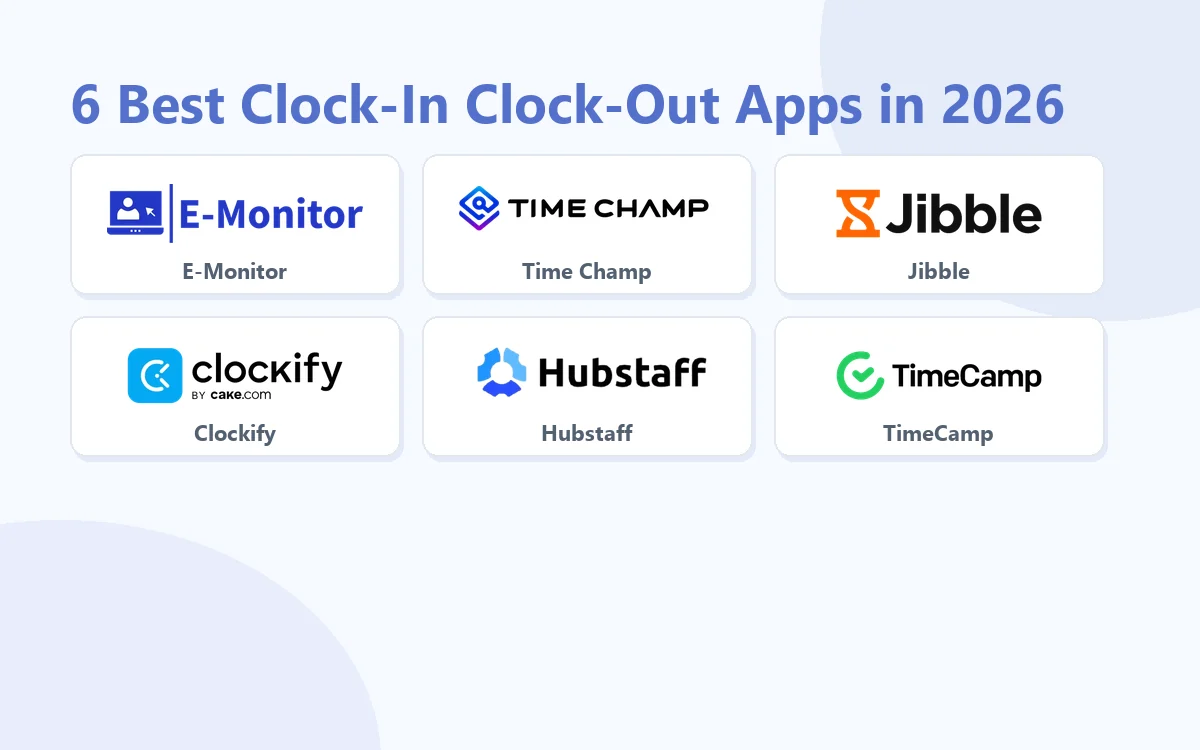
A clock-in clock-out app should do more than record a tap: it should prove the right person worked the hours claimed and hand payroll a clean total. These are the six best options in 2026, compared on accuracy, verification, and fit.
Want full monitoring with nothing to configure? E-Monitor starts at $3.90 per user per month with a 7-day free trial. Try E-Monitor free →
The digital punch clock has quietly become one of the highest-return tools a business can adopt, because manual and honor-system clock-ins leak payroll through rounding, forgetfulness, and outright time theft. But clock-in apps differ enormously in the one thing that matters most: whether they can prove the hours they record are real. Some rely on a tap anyone could make, others verify identity through biometrics or activity, and others tie the punch to a location. This guide compares the six best clock-in clock-out apps in 2026 on accuracy, verification, payroll integration, and fit, then explains how to choose for your specific workforce. Features and pricing change, so confirm current details before committing.
What makes a good clock-in clock-out app
The essential feature is verified accuracy. A clock-in app that records a tap and nothing else proves only that a button was pressed, which is precisely the weakness that lets buddy punching and inflated hours persist. The best apps tie each punch to a verified person through biometrics, activity, or location.
Beyond verification, the operational essentials are break and overtime handling that matches your rules, automated timesheets, exception detection for missed or impossible punches, and clean payroll integration. Together these remove the manual reconciliation that consumes manager time every pay period.
Reliability and usability decide whether any of it survives contact with a real workforce. A clock-in app is used by everyone, every day, often in a hurry, so it has to work offline, load fast, and be obvious to operate. An app people fight with produces bad data no matter how good its feature list looks.
A practical detail that separates workable apps from frustrating ones is how they handle the inevitable exceptions: the forgotten clock-out, the shift that ran long, the employee who arrived on site with no signal. Every workforce generates these weekly, and an app that makes correcting them a bureaucratic ordeal will quietly accumulate bad data as people stop bothering to fix errors. Check the correction and approval workflow during a trial, because that unglamorous feature determines how accurate your records actually end up being.
1. E-Monitor: activity-verified hours for desk and remote teams
Compare: E-Monitor pricing · all features
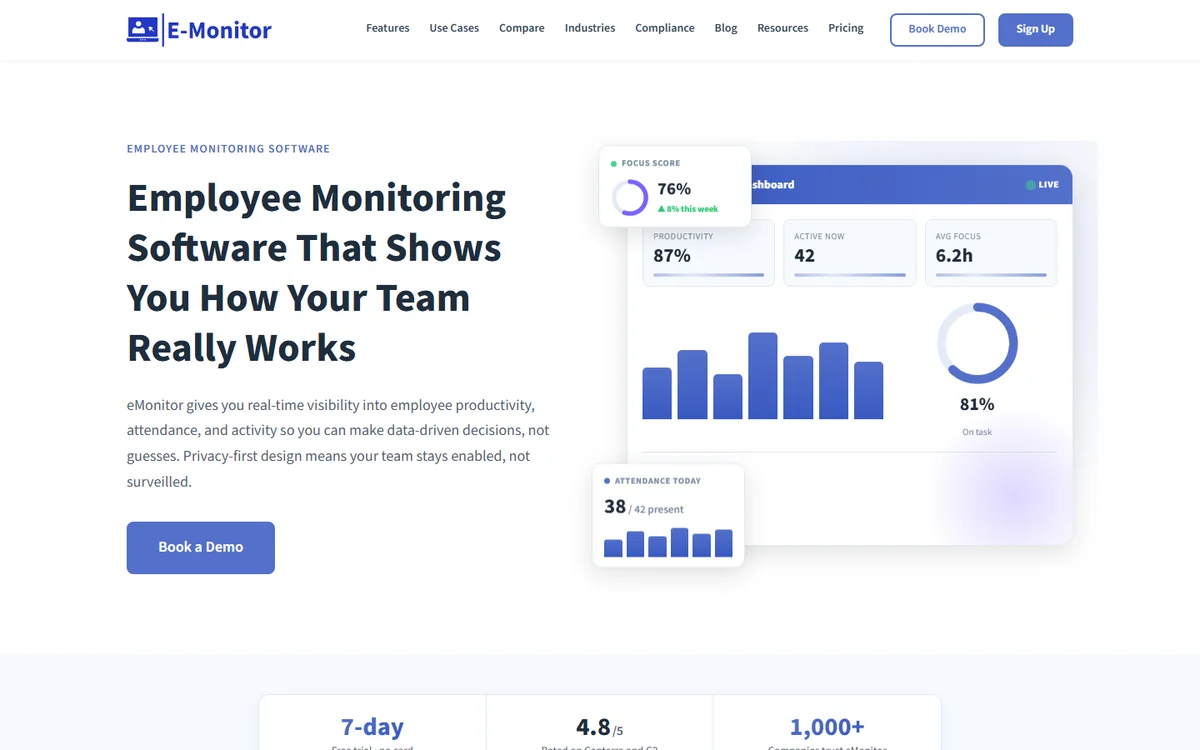
E-Monitor takes a fundamentally different approach to the clock-in problem, and for computer-based teams it is the most accurate one available. Rather than asking people to punch in, it confirms working hours from real device activity, so recorded time reflects work actually done and buddy punching becomes structurally impossible.
That makes it the strongest choice for desk-based, remote, and hybrid teams, where a tap-based app is easiest to game and hardest to verify. It handles breaks, overtime, and exceptions automatically, builds a compliance-ready audit trail, and runs across Windows, Mac, Linux, and Chromebook at $3.90 per user with every feature included.
It is worth being clear about fit: E-Monitor is not a kiosk app for a deskless crew clocking in at a job site, and teams in that shape are better served by the frontline tools below. For anyone working on a computer, though, activity-verified hours beat any button, and the same platform adds productivity and focus insight alongside the time data.
Communication matters as much as configuration when you introduce a clock-in app, particularly one with verification. Employees hear facial recognition or GPS and reasonably wonder how far the tracking goes, so explain the scope plainly: what is captured, when it stops, who can see it, and that it applies during working time only. Framing the change around accurate pay rather than tighter oversight is both the honest framing and the one that gets accepted, since verified hours protect the employee who genuinely worked them just as much as the employer.
2. Time Champ: time clock with deep tracking
Compare: E-Monitor vs Time Champ
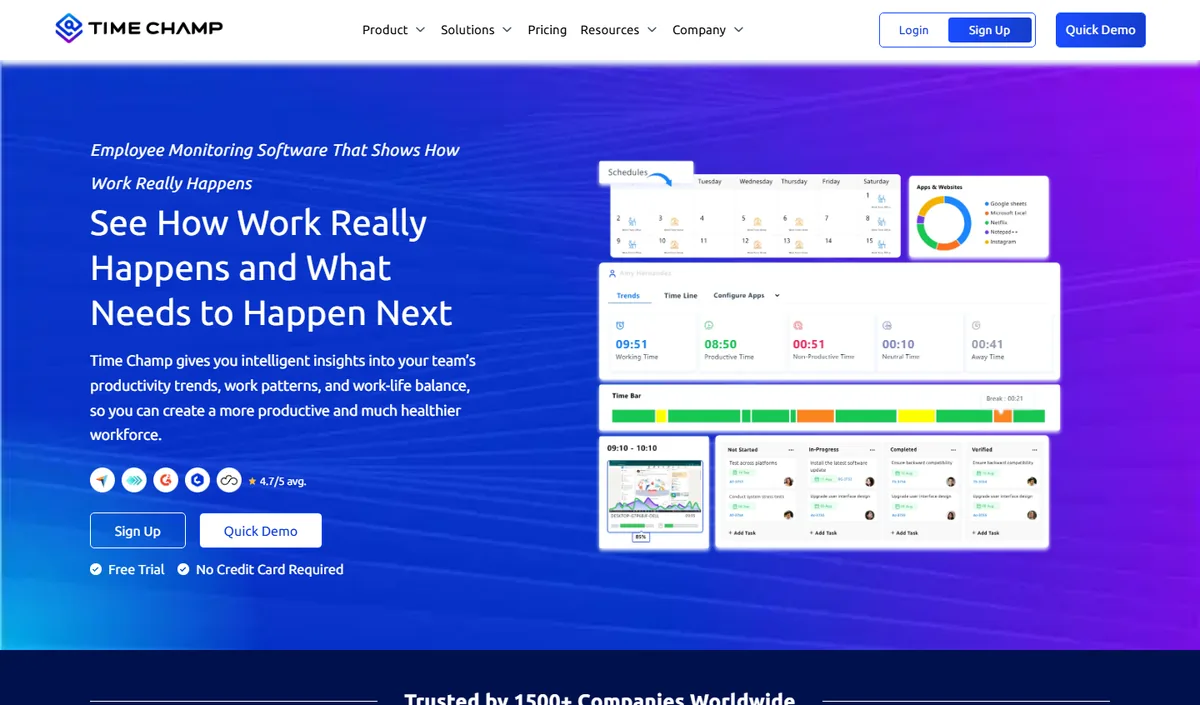
Time Champ pairs clock-in and time tracking with the most detailed activity and productivity analytics in this comparison. For organizations that want the punch record to feed a broader measurement program rather than just payroll, it offers considerable depth.
It suits teams comfortable configuring and reading granular data, and that see the time clock as one component of workforce analytics rather than a standalone utility. If maximum measurement is the goal, it sits at that end of the range.
3. Jibble: free verified clock-ins for frontline and multi-location teams
Compare: best attendance tracking software
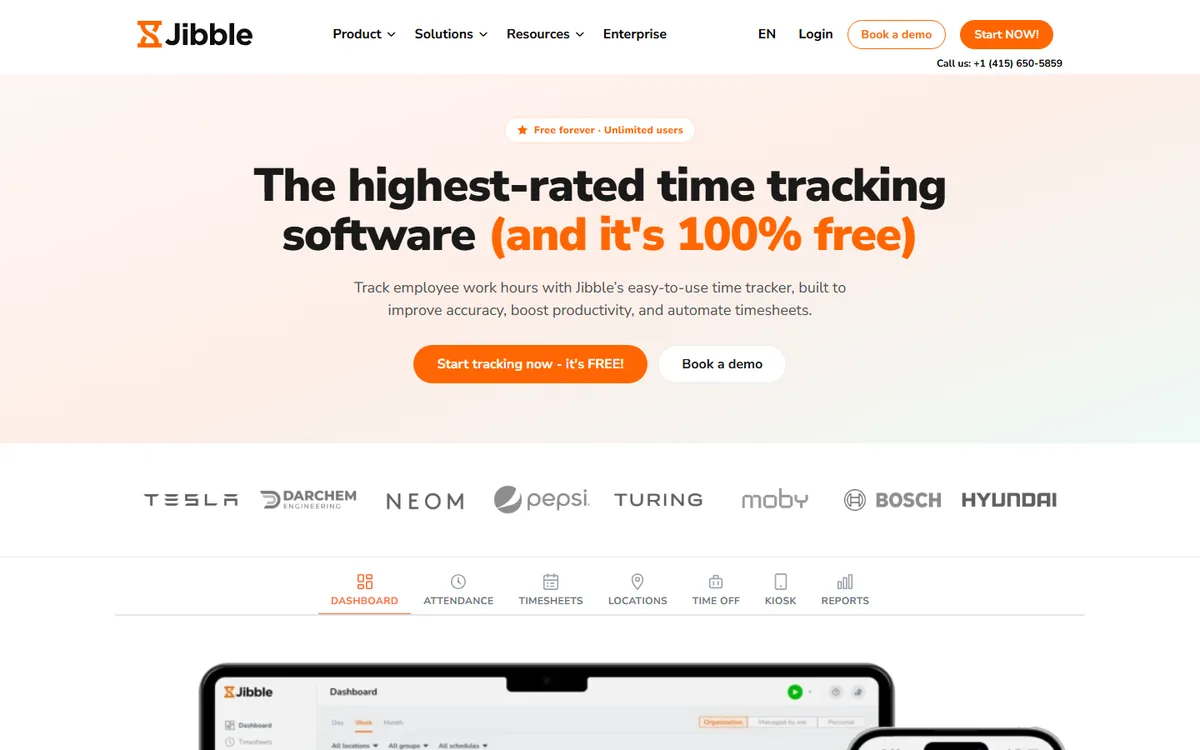
Jibble is the strongest free option in this comparison and the best fit for deskless teams that need verification without a budget. Its free plan covers unlimited users and includes facial recognition on clock-in, GPS tagging and two geofences, which is more identity proof than most paid tools offer at the entry level. Staff clock in from a phone, a shared kiosk tablet or the web, and timesheets, breaks, overtime rules and time off are handled in the same place.
Paid plans add what growing operations run into: unlimited geofences, leave management and more approval control on Premium at $4.49 per user per month billed annually, and advanced policies on Ultimate at $7.99. Pricing is less transparent than Clockify's, so confirm the current table before budgeting.
Two caveats. Facial recognition is biometric data, which brings consent and retention duties in Illinois, Texas, the EU and elsewhere, so disclose the method in writing before switching it on. And Jibble records when and where someone clocked in, not what they did afterwards, so it proves presence rather than work. For a retail, hospitality or site-based crew that is exactly the right scope; for a desk-based team it leaves the harder question unanswered.
4. Clockify: the budget time clock for high-trust teams
Compare: best Clockify alternatives
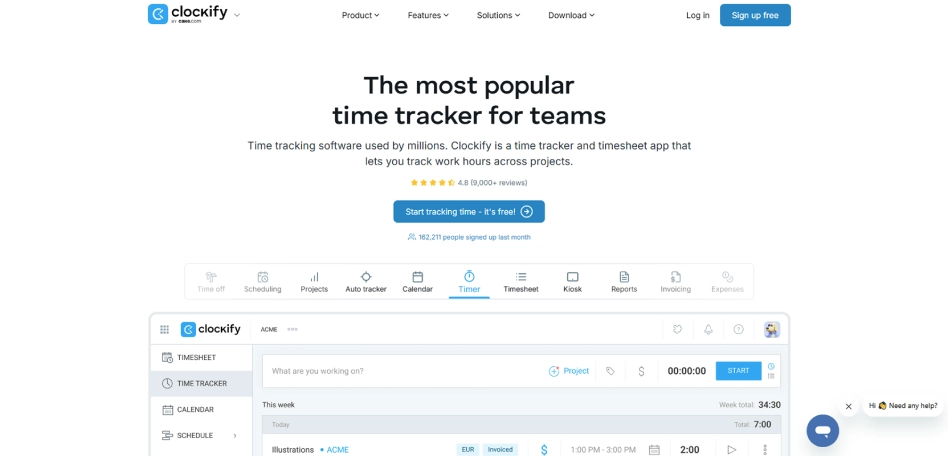
Clockify has long been the default free time tracker, and it remains the simplest way to get clean punch records, timesheets, approvals and payroll exports with almost no setup. Its clock-in is a tap or a PIN on a shared kiosk, which makes it fast for everyone and suits teams whose problem is record-keeping rather than time theft.
The free plan changed in April 2026: it now covers five users rather than unlimited, and kiosk mode, report exports and billable rates moved to paid tiers. Basic starts at $3.99 per user per month billed annually ($4.99 monthly) with kiosk seats at $0.79 each, Standard is $5.49, Pro $7.99 and Enterprise $11.99 on annual billing. For a small team the cost is still modest, but it is no longer the no-cost option it used to be above five people.
Verification is light by design. There is no facial recognition, and location capture is optional and limited, so a PIN kiosk does not stop a colleague punching in for someone else. Choose Clockify where trust is already high and you need reliable, inexpensive records; look elsewhere if buddy punching is the reason you are shopping.
5. Hubstaff: GPS job sites and activity tracking in one app
Compare: E-Monitor vs Hubstaff · best Hubstaff alternatives
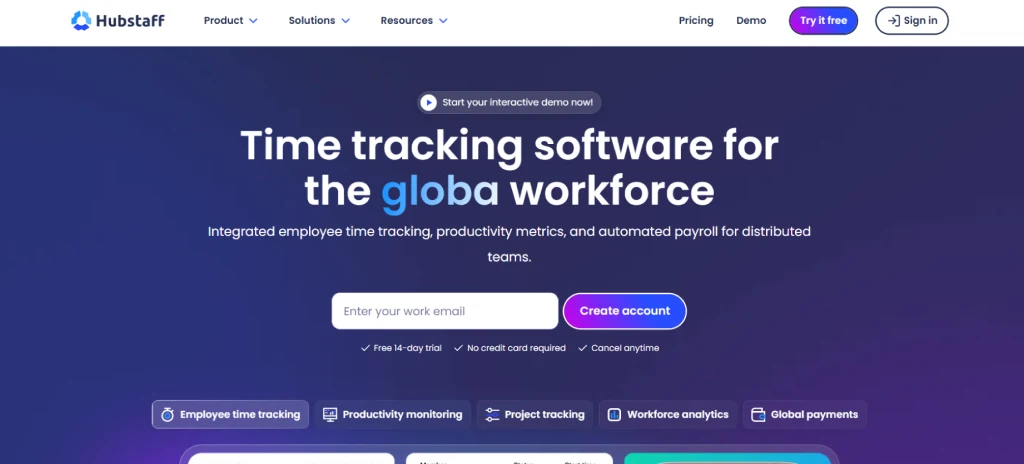
Hubstaff covers the two workforce shapes most teams struggle to serve with one tool. For field crews, its Locations add-on provides GPS tracking and geofenced job sites that clock people in and out automatically as they arrive and leave. For desk and remote staff, the desktop app records time with activity levels, app usage and optional screenshots. Scheduling, attendance, work breaks and daily and weekly limits sit on the Team plan.
That breadth is reflected in the price. Starter is $4.99 per user per month on annual billing ($7 monthly) for basic time tracking, Grow $7.50 ($9) adds app tracking and unlimited screenshots, Team $10 ($12) adds scheduling and attendance, and the Locations add-on starts at $3.33 per user on top. A field team that needs GPS and attendance therefore lands well above the entry price, so cost it on the plan you will actually use.
The screenshot and activity-level features are powerful and divisive. They give managers evidence that work happened, which is what a clock-in app alone cannot, but they also raise the privacy stakes, so pair Hubstaff with a clear policy on what is captured and when. Where E-Monitor confirms hours from activity without a punch at all, Hubstaff keeps the punch and adds monitoring around it, which some teams prefer and others find heavy.
6. TimeCamp: automatic time tracking with attendance built in
Compare: best time tracking software
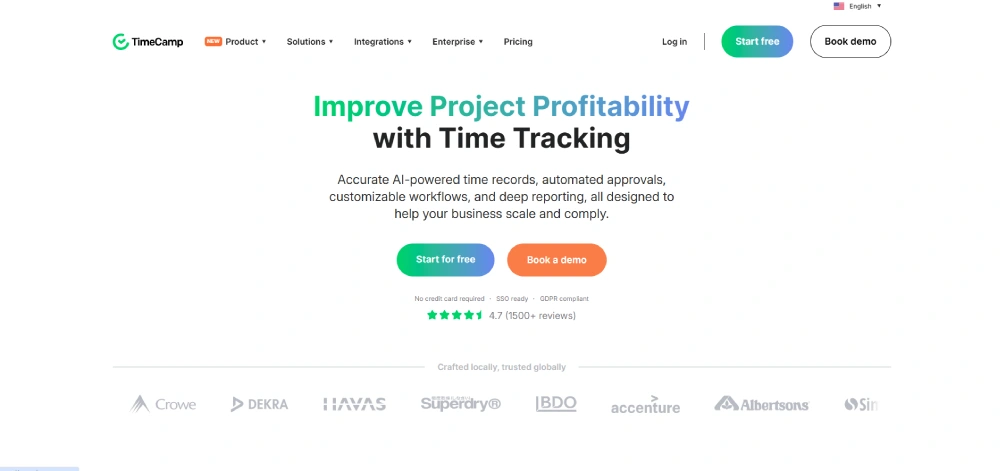
TimeCamp approaches the time clock from the project side. Its desktop app records time automatically against projects and tasks, and attendance tracking, from the Starter plan upward, turns that into clock-in and clock-out records, overtime and absence reports without a separate app. For small businesses that bill by the hour and also need attendance for payroll, that combination is the draw.
Pricing is among the lowest here: a free plan for basic tracking, Starter at $3.99 per user per month on annual billing ($5.49 monthly) with attendance included, Premium at $6.99 ($9.99) and Ultimate at $9.99 ($13.99). The time clock kiosk and geofencing, however, are reserved for the Enterprise tier on request, so a frontline operation that needs a shared tablet at the door should price that tier rather than the headline figure.
Verification sits between Clockify and the activity-based tools. Automatic tracking on a computer gives a stronger record than a tap, but it is project time first and attendance second, and there is no biometric check. It suits agencies, consultancies and small offices more than retail floors, and its QuickBooks and payroll integrations are solid for that audience.
A time clock that cannot be gamed E-Monitor verifies hours from real activity, so clock-ins reflect actual work and buddy punching becomes impossible. $3.90 per user, 7-day free trial. Sign up →
Preventing time theft and buddy punching
The reason verification dominates this category is that time theft is expensive and almost invisible. Buddy punching, where one employee clocks in for an absent colleague, is the classic case, and manual or tap-only systems cannot detect it because nothing about the punch identifies who made it.
Each verification method closes the gap differently. Biometrics tie the punch to a body, GPS ties it to a place, and activity-based systems tie the hours to real work on that person's machine. The right one depends on your workforce: a body-and-place check suits a job site, while activity verification suits anyone working on a computer.
Add anomaly detection on top, flagging impossible patterns like overlapping punches, missing clock-outs, or hours exceeding a schedule, and most time theft simply stops being viable, along with the honest mistakes that cost nearly as much. Our guide to buddy punching quantifies what this leakage typically costs.
How to choose for your team
Workforce shape decides most of this. Deskless, multi-location, and field teams need kiosk, mobile, GPS, or biometric apps, which points to Jibble, Hubstaff with its Locations add-on, or TimeCamp's Enterprise kiosk. Desk-based, remote, and hybrid teams working on computers are better served by activity-verified hours, which points to E-Monitor or Time Champ.
After that, check payroll integration for your specific platform, confirm the verification method fits your regulatory context, and factor in any hardware cost for kiosks or biometric readers. These practical constraints eliminate options faster than feature comparisons do.
Then trial your top choice across a full pay period. A clock-in app touches everyone daily and feeds the payroll everyone cares about, so the real test is whether it captured accurate hours without anyone fighting it. E-Monitor's 7-day free trial is the full product with no credit card, which is exactly the kind of real-world test to insist on.
Best practices
How to pick a clock-in clock-out app:
- Match method to workforce: activity for desk work, GPS and kiosk for the field.
- Demand verification: a tap alone proves nothing about who made it.
- Check break and overtime rules: they must match your policies.
- Require anomaly detection: catch missed and impossible punches.
- Confirm payroll integration: for your specific platform.
- Check regulatory fit: biometrics and GPS carry legal obligations.
- Factor hardware costs: kiosks and readers are not free.
- Trial a full pay period: the only honest test of daily fit.
The best clock-in clock-out app is the one whose verification method matches how your people actually work. A construction crew and a remote engineering team have almost nothing in common at clock-in time, and the tool that serves one poorly serves the other.
Get that match right, confirm the payroll path, and trial it against a real pay cycle, and the punch clock stops being a source of disputes and leakage and becomes an accurate, quiet part of how the week is recorded.
Activity-verified hours with E-Monitor
For any team working on computers, E-Monitor offers the most reliable answer to the clock-in problem: rather than trusting a tap, it confirms hours from real device activity, so recorded time matches worked time and buddy punching becomes structurally impossible. Breaks, overtime, and exceptions are handled automatically, and the audit trail builds itself.
Because it shares one agent with productivity, focus, and attendance analytics, you get insight alongside accurate hours instead of buying a separate system, across Windows, Mac, Linux, and Chromebook. Work-hours-only tracking and employee self-access keep it proportionate. Trusted by 1,000+ companies worldwide and rated 4.8/5 on Capterra, E-Monitor costs $3.90 per user with every feature included.
If manual or honor-system clock-ins are leaking payroll, replace them with hours that verify themselves. Start a 7-day free trial and run it against one full pay period.
Related reading: E-Monitor + Workday.
Frequently Asked Questions
1. What is the best clock-in clock-out app?
It depends on your workforce shape. For desk, remote, and hybrid teams, E-Monitor is strongest because it verifies hours from real activity rather than a tap. For deskless frontline teams, Jibble; for field crews needing on-site proof, Hubstaff with GPS and geofenced job sites.
2. How do clock-in clock-out apps prevent time theft?
Through verification: biometrics tie the punch to a person, GPS and geofencing tie it to a place, and activity-based systems tie hours to real work on that person's device. Anomaly detection then flags overlapping punches, missing clock-outs, and impossible hours.
3. Is there a free clock-in clock-out app?
Yes. Jibble is free for unlimited users and includes facial recognition and GPS on clock-in. Clockify's free plan now covers up to five users and no longer includes kiosk mode, and TimeCamp has a free tier for basic tracking. Free tiers limit verification and advanced features, so they suit teams with high trust rather than a time-theft problem.
4. Do clock-in apps work offline?
Good ones do, caching punches locally and syncing when connectivity returns, which matters for field, construction, and retail sites with poor signal. Confirm offline behavior before deploying to any location where reliable connectivity is not guaranteed.
5. Are GPS clock-in apps legal?
Generally yes on work devices during work hours with disclosure, but location tracking carries privacy obligations that vary by jurisdiction, and tracking outside work hours is not appropriate. Document the scope in a written policy before deploying.
6. What is the best clock-in app for remote workers?
Activity-based tools suit remote workers best, because a tap-based punch proves nothing when nobody can witness it. E-Monitor confirms hours from real device activity across Windows, Mac, Linux, and Chromebook at $3.90 per user.
7. Do I need hardware for a clock-in app?
Not always. Web, mobile, and activity-based clock-ins run on devices people already have. Kiosk and biometric setups need a tablet or reader, which is a real cost to factor in when comparing options for a deskless workforce.
8. Can clock-in apps handle breaks and overtime?
The good ones handle both automatically according to your configured rules, plus time off and exception reporting. Getting these right matters because break and overtime miscalculation is a common source of payroll error and wage disputes.
9. How do clock-in apps connect to payroll?
Through direct integrations that export approved hours into your payroll platform, removing manual re-entry. Integration support varies by vendor, so verify that your specific payroll system is supported before you commit.
10. How much do clock-in clock-out apps cost?
Most range from free tiers to around $10 per user monthly, plus hardware for kiosk or biometric setups. All-inclusive activity-based tools like E-Monitor are $3.90 per user with every feature included and no extra hardware for desk or remote teams.
Retire the punch clock for good E-Monitor verifies hours from real activity and feeds payroll clean totals, at $3.90 per user. Start a 7-day free trial. Sign up →

